How to Mount SFTP as a Drive in Finder on Mac, Without macFUSE
Finder can't open SFTP, and macFUSE's default setup needs Reduced Security on Apple silicon. Here is how to mount a server as a real Finder drive with macOS's own NFS client and rclone, tested step by step, plus what we learned building ZyDisk.
On this page
- Why Finder can't open sftp://
- The classic answer: macFUSE and sshfs
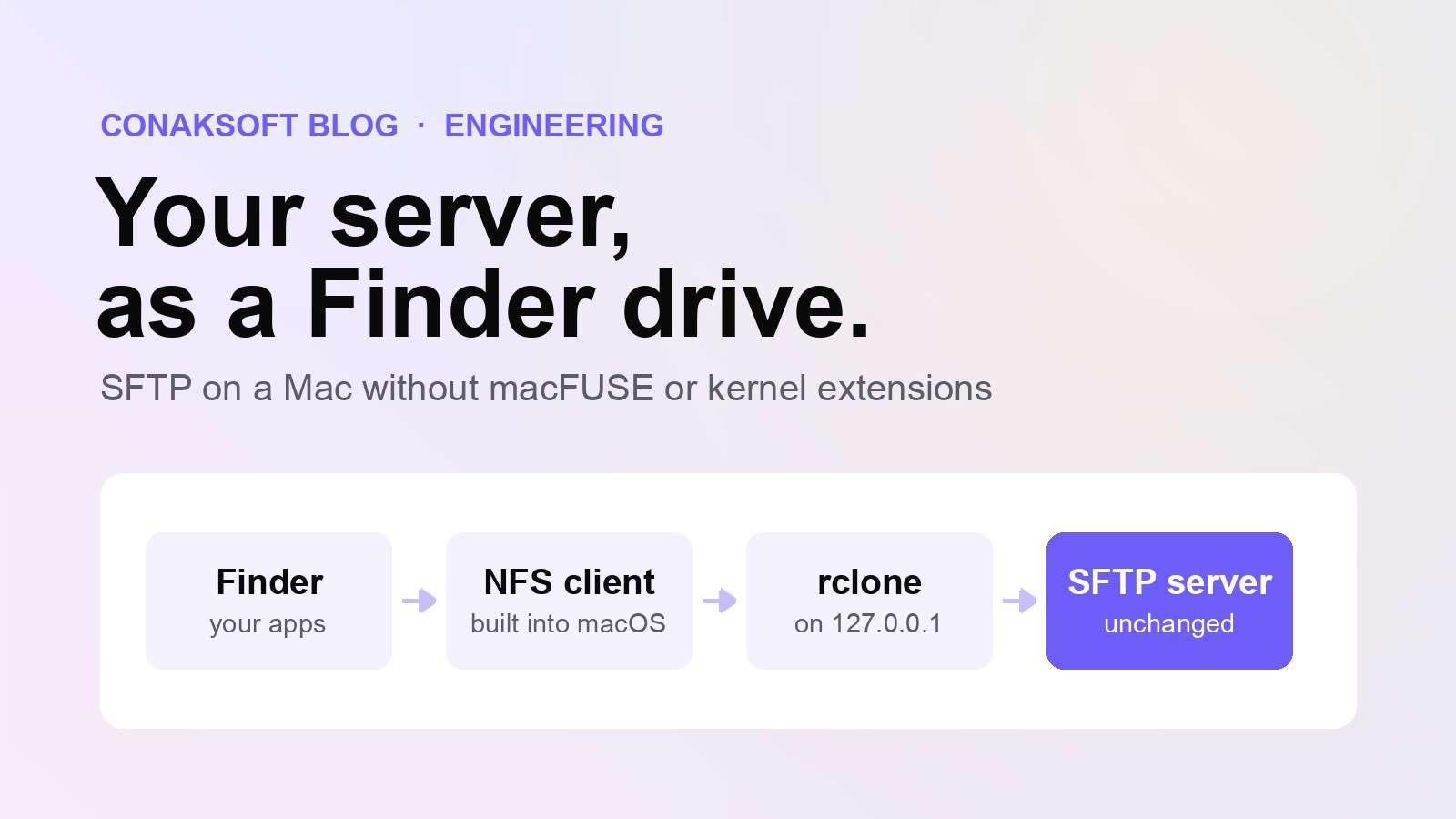
- The trick: let macOS mount NFS, and translate behind it
- Set it up yourself in Terminal
- What we learned building ZyDisk
- Your server fills up with ._ files
- "Copied" does not mean "on the server"
- Finder freezes when the connection drops
- Permissions don't travel
- Passwords and admin prompts
- Or let ZyDisk do it
- Other options
- The bottom line
If you work on websites or servers, you know the routine: open an SFTP app, find the folder, download a file, edit it, upload it again. It works, but it is not how the rest of your Mac works. What you really want is for the server to show up in Finder like a USB disk, so that VS Code, Terminal, Preview and every other app can open its files directly.
macOS can't do that on its own for SFTP, and the classic fix asks you to lower your Mac's security. In this post we explain why, show a way around it that uses only what macOS already has plus one open-source tool, and share the problems we ran into while building ZyDisk, our Mac app that does all of this for you. We use it every day: the site you are reading is deployed through a ZyDisk drive.
Why Finder can't open sftp://#
Finder's Go > Connect to Server window (Command-K) looks like it should accept any address, but it only understands a short list of protocols. Apple's documentation lists SMB, NFS, FTP and WebDAV. FTP is read-only: you can copy files from the server, and Apple suggests a separate FTP app if you want to upload.
SFTP, the protocol almost every Linux server offers out of the box, is not on the list. So for SFTP you need something extra. The real question is what that extra piece costs you.
The classic answer: macFUSE and sshfs#
For years the standard advice was to install macFUSE and sshfs. macFUSE lets ordinary programs implement file systems, and sshfs is a file system that talks SFTP. Together they mount a server as a folder.
On Intel Macs that was mostly painless. On Apple silicon it is not, because macFUSE has traditionally worked through a kernel extension, and Apple has been phasing those out:
- A third-party kernel extension can't load until you shut down, start up in macOS Recovery, open Startup Security Utility, choose Reduced Security and allow user management of kernel extensions from identified developers.
- After that, you still approve the extension in System Settings and restart.
- Reduced Security is a real trade-off. Apple's platform security guide lists third-party kernel extensions among the actions that can put your system's security at risk.
- sshfs still gets occasional releases, but its README says it has no active, regular contributors and that its maintainer has no capacity for new development.
The picture is improving on new systems. Apple added FSKit, a framework for file systems that run in user space, and both macFUSE 5 and FUSE-T now offer FSKit backends on recent macOS versions. In macFUSE, though, FSKit is opt-in, the kernel extension is still the default, and FSKit volumes have limits the kernel route does not. macFUSE's FSKit backend needs macOS 15.4 or later, and macOS 26 for network-style volumes like a remote server. If you are on an older macOS, or you would rather not install a file system framework at all, there is another way.
The trick: let macOS mount NFS, and translate behind it#
macOS ships with an NFS client. It has been part of the system for decades, it needs no extension and no security changes, and Finder treats an NFS mount like any other network drive.
The NFS server doesn't have to be a remote machine. A program on your own Mac can act as an NFS server on 127.0.0.1, and when Finder asks it for a file, that program can fetch the file from your server over SFTP. This is exactly what rclone serve nfs does. rclone is a widely used open-source tool for cloud and server storage. Its NFS server arrived in version 1.65 and is still labelled experimental in rclone's documentation, but it has been solid for us.
The chain looks like this:
| Layer | Who runs it | What it speaks |
|---|---|---|
| Finder, VS Code, Terminal | Your apps | Normal file access |
| NFS client | macOS itself | NFS to 127.0.0.1 |
rclone serve nfs | rclone, as your user | NFS in, SFTP out |
| Your server | sshd | SFTP |
Nothing in that chain needs a kernel extension, and your server needs no changes: if you can log in over SFTP, it works. FUSE-T, a FUSE replacement for macOS, used the same local NFS idea before FSKit came along.
Set it up yourself in Terminal#
You need rclone (from rclone.org or Homebrew) and an SSH key or password for your server.
1. Create an SFTP remote. Replace the host, user and key with your own:
rclone config create myserver sftp \
  host=example.com user=deploy key_file=~/.ssh/id_ed25519 \
  known_hosts_file=~/.ssh/known_hosts
rclone lsd myserver:/var/www
known_hosts_file makes rclone check the server's identity the same way ssh does. Leave it out and rclone warns that it is not validating the host key at all. The second command should list the folders on your server. If it does, rclone can reach it.
2. Start the NFS server. Pick any free port. This serves /var/www from your server, to your Mac only:
rclone serve nfs myserver:/var/www --addr 127.0.0.1:12049 \
  --vfs-cache-mode full --nfs-cache-type disk -v
--vfs-cache-mode full turns on rclone's local file cache. Without a cache, an NFS mount from rclone is read-only, and full is the mode rclone recommends. --nfs-cache-type disk stores rclone's file handles on disk, so the mount keeps working if rclone restarts. We stopped and restarted rclone under a mounted drive, and Finder carried on as if nothing had happened. -v prints each upload in the log. Leave this command running.
3. Mount it. In a second Terminal window:
mkdir -p ~/Servers/myserver
mount_nfs -o vers=3,tcp,port=12049,mountport=12049,locallocks,soft,intr,timeo=50,retrans=6 \
  127.0.0.1:/ ~/Servers/myserver
open ~/Servers/myserver
No sudo is needed: macOS lets you mount into a folder you own. Mounting under /Volumes, where USB disks show up, does need administrator rights. Your server is now a folder in Finder. The options matter more than they look:
vers=3andtcp: rclone's server speaks NFS version 3 over TCP.portandmountport: rclone answers both NFS and mount requests on the one port it listens on.locallocks: file locks are handled on your Mac. rclone doesn't run the separate NFS lock service, so without this option locking breaks. In our test without it, one kind of lock hung until we killed it and the other failed with "No locks available". With it, both worked instantly.soft,intr,timeoandretrans: if the connection drops, a request fails after a few retries instead of freezing Finder until you reboot. The trade-off is that an app can see an error during a long outage, so avoid important writes on a flaky connection.
4. Unmount when you are done.
umount ~/Servers/myserverThen stop rclone with Control-C, but only after its log shows vfs cache: upload succeeded for the last files you saved. If you stop it early, nothing is lost: with --vfs-cache-mode full, rclone keeps unfinished uploads in its cache and sends them the next time you start it with the same settings. Until then, though, the server doesn't have your changes.
rclone also has an nfsmount command that runs steps 2 and 3 in one go, again without sudo:
rclone nfsmount myserver:/var/www ~/Servers/myserver --vfs-cache-mode fullIt is worth a try if you only need a mount now and then.
What we learned building ZyDisk#
The commands above are enough to put a drive on screen. Making it pleasant for daily work took a lot longer. These are the problems we hit, and what fixed them.
Your server fills up with ._ files#
When a volume can't store extended attributes, such as Finder tags or the quarantine flag, macOS saves them in hidden ._filename files next to the original. Finder also drops a .DS_Store file into folders you open. On a network drive, all of those end up on your server, right next to your code.
You can't easily avoid them. Recent macOS versions attach attributes to files on their own: in our tests, every file got a ._ companion on the server, even after xattr -c, cp -X or rsync, because macOS kept adding an attribute called com.apple.provenance. rclone's --exclude '._*' doesn't help either. It hides the files from the drive's listing, but they are still uploaded.
What works is cleaning up afterwards. This removes them from the server (run it with --dry-run first to see the list):
rclone delete myserver:/var/www --include '._*' --include .DS_Store --dry-runZyDisk does this automatically: it deletes each ._ and .DS_Store file from the server as soon as it is uploaded, and it can sweep a whole server for old ones.
"Copied" does not mean "on the server"#
With a write cache, Finder finishes a copy as soon as the files are in rclone's local cache. rclone uploads them a few seconds later: --vfs-write-back sets the delay, and the default is five seconds. For editing a file, that is exactly what you want. For deploying a website, it can surprise you: you reload the live site and still see the old version.
Our deploy script handles this by writing a small timestamp file last, then requesting it from the live site until the new value appears. Files go out roughly in the order they were written, so when the timestamp is live, the rest is almost always there too. ZyDisk shows the upload queue and speed for each drive, and when you eject, pending uploads finish before the drive is fully released.
Finder freezes when the connection drops#
NFS mounts are "hard" by default: if the server stops answering, every request waits until it comes back. With a local rclone that restarts in a second, that is fine. If your Wi-Fi drops or rclone dies for good, Finder can hang. That is why we use soft with short timeouts. ZyDisk also watches rclone and restarts it within seconds if it stops, and the on-disk handle cache means Finder carries on afterwards instead of showing errors.
Permissions don't travel#
What you can do on the server depends on the SFTP user you log in as. Changing permissions through the mount doesn't work: in our test, chmod 600 on a file in the drive raised no error, but the file stayed readable by everyone, both on the drive and on the server. New files get the server's defaults. If a file needs specific permissions, set them over SSH.
Also expect some apps to ask for access to network volumes the first time they open a file on the drive. macOS treats the mount as a network volume, and it asks before an app can read files on one, so this is normal.
Passwords and admin prompts#
If you log in with a password instead of a key, rclone stores it in its config file. rclone only obscures it there, which is not the same as encrypting it, so either use a key or protect the whole file with rclone config encryption set. ZyDisk keeps server passwords in the macOS Keychain, never writes them to a config file and never puts them on a command line where other programs could read them.
The other prompt is for your Mac password. ZyDisk mounts its drives under /Volumes, so they appear in Finder like any external disk, and that needs administrator rights. Instead of asking every time, it installs a small helper once, with your approval. After that, connecting and ejecting never ask for your password.
Or let ZyDisk do it#
ZyDisk wraps everything above in a Mac app:
- SFTP/SSH, FTP, FTPS and S3-compatible storage (AWS S3, Cloudflare R2, MinIO, Wasabi, Backblaze B2), each as a drive under
/Volumes. - No macFUSE, no kernel extension and no Reduced Security. It runs on macOS 13 Ventura and later, on Apple silicon and Intel.
- Passwords in the Keychain, Touch ID for sensitive actions, and no telemetry.
._and.DS_Storeclean-up, automatic recovery, a live upload queue, and one-click opening in Finder, VS Code or Terminal.
ZyDisk is source available on GitHub and free for personal use, study and non-profit organizations. Using it at work requires a commercial license: get in touch and we will sort it out. For now you build it from source with Flutter and Xcode, and the README walks you through it.
Other options#
- rclone nfsmount: the same approach as above in a single command, without an app around it.
- macFUSE or FUSE-T with FSKit: no kernel extension on recent macOS versions, with the FSKit limits mentioned above. A good fit if you already use other FUSE file systems.
- Other apps, such as Mountain Duck and ExpanDrive, also mount SFTP servers as drives in Finder.
- A file transfer app such as Cyberduck, Transmit or FileZilla, if you only move files now and then and don't need a drive.
The bottom line#
Finder can't mount SFTP by itself, but you no longer need a kernel extension to get there. macOS's own NFS client plus a local translator such as rclone gives you a real Finder drive, with no changes to your Mac's security settings or to your server. Set it up by hand with the commands above, or use ZyDisk if you want the rough edges handled for you.
If you need a Mac app, a website or a mobile app built by people who use these tools every day, tell us about your project.
Sources
- Apple, Servers and shared computers you can connect to on Mac
- Apple, Change security settings on the startup disk of a Mac with Apple silicon
- Apple, Startup Disk security policy control for a Mac with Apple silicon
- Apple, Allow apps to access your network volumes
- macFUSE, Getting Started and Announcing macFUSE 5.0.0 (May 2025, FSKit backend)
- libfuse, sshfs README
- FUSE-T, macos-fuse-t/fuse-t
- rclone, rclone serve nfs, rclone nfsmount and SFTP backend
- rclone, VFS file caching
- Apple,
man mount_nfson macOS (thelocallocks,softandintroptions) - ZyDisk, source code and README
- Our own tests on macOS 14 with rclone 1.74.4 against one of our Ubuntu servers, November 2026