Mac System Data Too Large? What It Really Was on Our Mac, and How to Clear It Safely
Gradle, Flutter and CocoaPods caches kept filling our 256 GB MacBook, so we measured System Data folder by folder. What we found, which parts are safe to delete and the exact Terminal commands.
On this page
- What System Data is
- What we found on our Mac
- Step 1: restart, and check what macOS cleans by itself
- Step 2: find what is taking space (Terminal commands)
- Step 3: how to clear System Data safely
- Time Machine local snapshots
- App and browser caches
- iPhone and iPad backups
- AI apps, models and virtual machines
- Step 4: if you write code, this is where the space went
- Xcode taking up too much space
- Gradle cache: is ~/.gradle/caches safe to delete?
- Android SDK, Flutter, CocoaPods, npm, pip, Homebrew and Swift
- Step 5: move regenerable caches to an external drive
- What not to delete
- System Data still over 100 GB?
- The faster way, for developers
- What we do now
One of the MacBooks we build our apps and games on has a 256 GB disk. That sounds like enough until you work on Android, Flutter and iOS projects on the same machine. Gradle downloads its dependencies, Flutter keeps every package version in its pub cache, CocoaPods fills a Pods folder in each iOS project, and Xcode adds Simulators on top. Sooner or later the disk is full in the middle of a build, or a macOS update won't install.
When that happens, System Settings > General > Storage doesn't help much. The biggest bar is usually System Data, you can't click on it, and Apple's own page says you can't manage it. So we measured what was inside it on that MacBook, folder by folder, and wrote down which parts are safe to delete, how to delete them, and which ones to leave alone.
What System Data is#
Apple's Storage settings page describes System Data as files that "don't fall into the categories listed here", mainly files used by the system such as logs, caches and temporary files. It also says you can't manage the contents of that category, and that its size changes with the current state of your Mac.
macOS counts anything it can't label as Applications, Documents, Photos, Mail, Messages, iOS Files and so on as System Data. That includes:
- Caches from apps, browsers and developer tools, in
~/Library/Caches - App support data: databases, downloaded models, game files and virtual machine images in
~/Library/Application Support - Temporary files in
/private/var/folders - Swap and sleep files in
/private/var/vm - Time Machine local snapshots waiting to be copied to your backup disk
- Developer files: Xcode build data, iOS Simulator devices and runtimes, Android SDKs
- Logs in
~/Library/Logsand/Library/Logs
So System Data can be small one day and large the next. A browser cache fills up, a Simulator runtime downloads in the background, or an app pulls a multi-gigabyte model, and the gray bar grows with no visible file to blame.
What we found on our Mac#
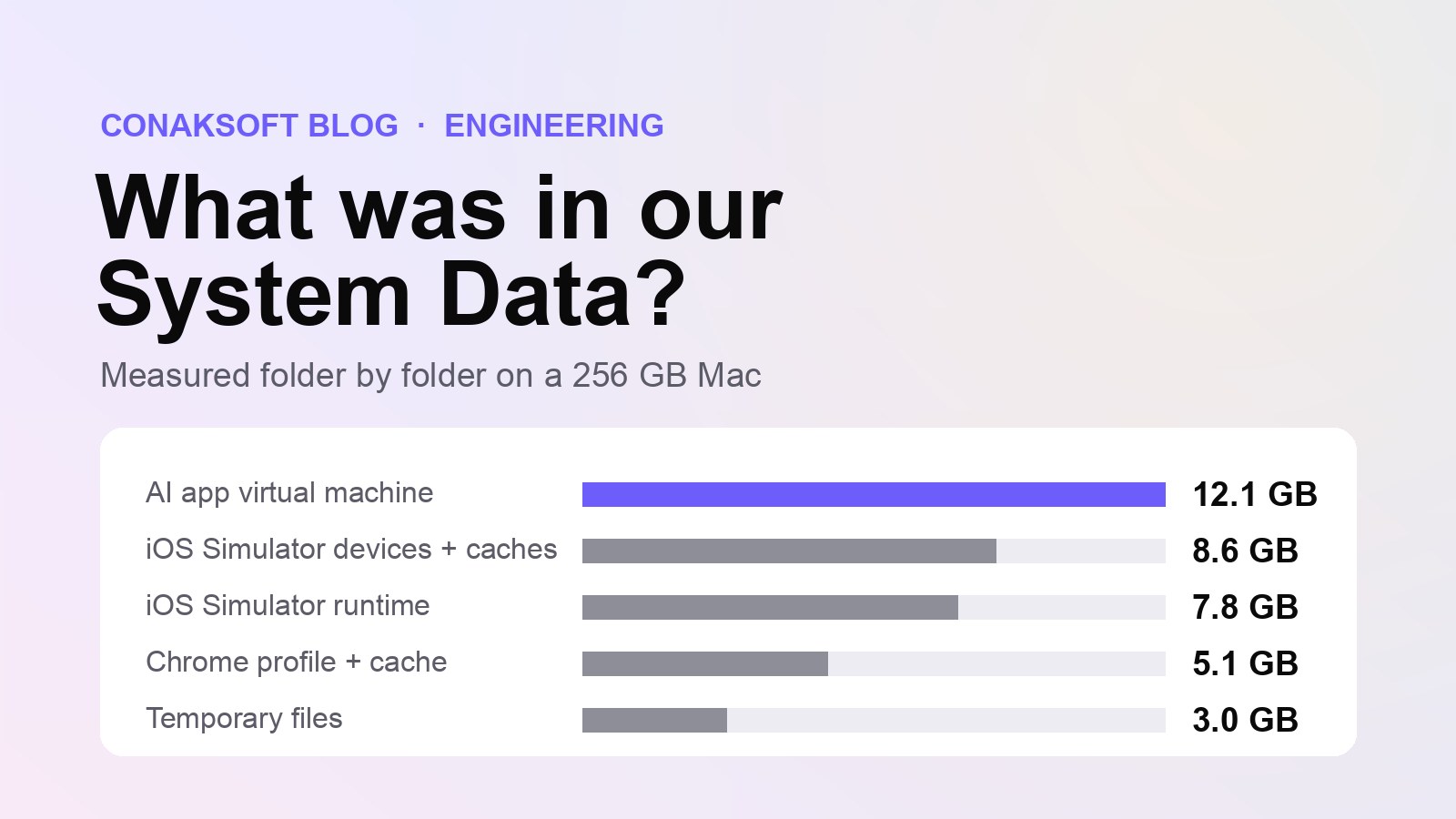
We measured one of our development machines on 26 November 2026: an M2 Mac with 8 GB of memory and a 256 GB disk, running macOS Sonoma 14.8.7, with 106.7 GB of the data volume in use. We used du from Terminal and changed nothing while measuring. Sizes are in GB the way Finder shows them (1 GB = 1,000,000,000 bytes). The steps below also apply to newer macOS versions, though some menu names in System Settings may differ slightly.
| What | Where | Size |
|---|---|---|
| AI desktop app: virtual machine image | ~/Library/Application Support/ (the app's folder) | 12.1 GB |
| iOS 18 Simulator runtime | /Library/Developer/CoreSimulator/Images | 7.8 GB |
| iOS Simulator devices | ~/Library/Developer/CoreSimulator/Devices | 4.9 GB |
| iOS Simulator caches | ~/Library/Developer/CoreSimulator/Caches | 3.7 GB |
| Temporary files | /private/var/folders | 3.0 GB |
| Chrome profile data | ~/Library/Application Support/Google | 2.8 GB |
| Chrome cache | ~/Library/Caches/Google | 2.3 GB |
| AI desktop app: browser caches | ~/Library/Application Support/ (same folder) | 1.5 GB |
| Sleep image | /private/var/vm/sleepimage | 1.1 GB |
| rclone file cache (from mounting SFTP in Finder) | ~/Library/Caches/rclone | 1.0 GB |
| Swift Package Manager cache | ~/Library/Caches/org.swift.swiftpm | 0.95 GB |
| Browser automation (Playwright) | ~/Library/Caches/ms-playwright-* | 0.56 GB |
| Logs | ~/Library/Logs | 0.1 GB |
A few things stood out.
The largest single item belonged to an AI app. An AI desktop app we use every day keeps a virtual machine image of about 12 GB so it can run code in an isolated sandbox. This is normal, and other apps do the same: local AI features, offline models and sandboxes have become a common reason for System Data to grow by 10 GB or more at once. Tools that keep models on disk, such as Ollama or LM Studio, can take even more.
iOS Simulator files came second, and part of them sits outside your home folder. Simulator runtimes are stored as disk images in /Library/Developer/CoreSimulator, so looking only in ~/Library misses them. With the Simulator devices and caches added, Xcode's simulators used 16.4 GB.
Some things were missing from the list because we had already dealt with them. Xcode's DerivedData folder was empty, and there were no Time Machine local snapshots or iPhone backups. Gradle (11.8 GB), the Android SDK (8.3 GB), npm (1.4 GB) and Flutter's pub cache (1.2 GB) had been moved to an external SSD earlier, which keeps another 22.7 GB off the internal disk. Step 5 shows how we did it.
Step 1: restart, and check what macOS cleans by itself#
Before deleting anything, restart your Mac. Temporary files in /private/var/folders and swap files are cleaned up when the Mac starts, and some apps release caches when they quit. It costs you a minute and sometimes frees several gigabytes.
If you need room for a macOS update, Apple also suggests starting up in safe mode once, because the Mac clears certain system caches during a safe boot. They are created again as needed, so this helps for a one-off install rather than permanently.
Then open System Settings > General > Storage and work through the recommendations at the top (empty Trash automatically, optimize storage and so on) and the named categories. Large files in Documents or old apps are easier to deal with than anything in System Data.
Step 2: find what is taking space (Terminal commands)#
Open Terminal and run these one at a time. They only read sizes and delete nothing:
# The biggest folders in your Library
du -sh ~/Library/* 2>/dev/null | sort -rh | head -15

# Inside the two folders that usually hide System Data
du -sh ~/Library/Application\ Support/* 2>/dev/null | sort -rh | head -15
du -sh ~/Library/Caches/* 2>/dev/null | sort -rh | head -15

# Developer tools, if you have them
du -sh ~/Library/Developer/* /Library/Developer/CoreSimulator/* 2>/dev/null | sort -rh

# Time Machine local snapshots
tmutil listlocalsnapshots /
du may print "Operation not permitted" for some folders. That is macOS privacy protection and you can ignore it, or give Terminal Full Disk Access in System Settings > Privacy & Security if you want complete numbers.
Don't run du on / and add up the results. On modern macOS, your files appear both under / and under /System/Volumes/Data, so a naive total can count the same data twice.
Step 3: how to clear System Data safely#
Work through these in order and check the storage bar after each one. Quit the related app before deleting its files.
Time Machine local snapshots#
If you use Time Machine with an external disk, macOS keeps local snapshots until the next backup. They normally disappear on their own, but a backup disk you haven't connected for weeks can leave them behind.
tmutil listlocalsnapshots /
sudo tmutil deletelocalsnapshots /
The second command removes all local snapshots on the startup disk. The easier fix is often just connecting your backup disk and letting a backup finish.
App and browser caches#
Caches in ~/Library/Caches hold data an app can download or rebuild. Deleting the folder of an app you have quit is safe; the app will be slower the next time it starts while it rebuilds. For browsers, use the browser's own setting (in Chrome: Settings > Privacy and security > Delete browsing data, cached images and files) so you don't log yourself out of everything.
iPhone and iPad backups#
Old device backups can be tens of gigabytes. Manage them in System Settings > General > Storage > iOS Files, or in Finder with your device connected. Their folder is ~/Library/Application Support/MobileSync/Backup. Delete only backups you no longer need.
AI apps, models and virtual machines#
Check ~/Library/Application Support for AI tools. Large items here are usually models or virtual machine images. Remove them from inside the app (most have a setting to delete downloaded models) or uninstall the app if you no longer use it. Deleting the files by hand while the app is installed usually just makes it download them again.
Step 4: if you write code, this is where the space went#
Developer tools are the biggest source of System Data we see, and almost all of it can be rebuilt. These commands are safe in the sense that the tools recreate what they need, but the next build will be slower. If you'd rather review everything on one screen before deleting, ZyManager does this scan for you (more on it below).
Xcode taking up too much space#
Most of Xcode's disk use is build data, device support files and Simulators. Build data and device files first:
# Build products and indexes, rebuilt on the next build
rm -rf ~/Library/Developer/Xcode/DerivedData/*

# Debug symbols for iOS versions of devices you no longer connect
open ~/Library/Developer/Xcode/iOS\ DeviceSupport
In the DeviceSupport folder, delete the versions you don't need; Xcode copies them again the next time you connect that device. Leave ~/Library/Developer/Xcode/Archives alone unless you are sure: those are your shipped builds and their debug symbols.
Then the iOS Simulators, which were the second-largest item on our Mac:
# Simulators for runtimes that are no longer installed
xcrun simctl delete unavailable

# Which runtimes are installed, and how big they are
xcrun simctl runtime list

# Runtimes you haven't used in 30 days: dry run first, then for real
xcrun simctl runtime delete --notUsedSinceDays 30 --dry-run
xcrun simctl runtime delete --notUsedSinceDays 30
You can also remove runtimes in Xcode's settings, under Components (called Platforms in Xcode 15).
Gradle cache: is ~/.gradle/caches safe to delete?#
Yes. ~/.gradle/caches only holds downloaded dependencies and build outputs. Gradle downloads them again on the next build, which will be slower, so stop the Gradle daemons first and expect the first build afterwards to take a while.
# Gradle: stop the daemons, then remove the download and build cache
./gradlew --stop        # from any Android project
rm -rf ~/.gradle/caches
Android SDK, Flutter, CocoaPods, npm, pip, Homebrew and Swift#
The rest are one command each:
# Flutter and Dart: remove package versions no project uses, or clear everything
dart pub cache gc
dart pub cache clean

# CocoaPods download cache (each project's Pods folder is separate)
pod cache clean --all

npm cache clean --force
pip3 cache purge
brew cleanup --prune=all
rm -rf ~/Library/Caches/org.swift.swiftpm
For the Android SDK, remove old platforms and system images from Android Studio's SDK Manager instead of deleting folders, and delete emulators you don't use from Device Manager. A single emulator image can take several gigabytes.
Don't forget project folders. On our MacBook, old Flutter and iOS projects were the worst: each one keeps its own build, .dart_tool and ios/Pods folders, and node_modules and Python virtual environments add up the same way. flutter clean in a project removes its build output, and pod install brings Pods back when you need it. These live in your project folders, so Storage usually counts them under Documents rather than System Data, but they fill the same disk.
Step 5: move regenerable caches to an external drive#
If your Mac has a small internal disk, the most effective change we made was moving the heaviest developer caches to an external SSD and leaving a symbolic link behind. The tools still find them at the usual path.
# Example: move Gradle's folder to an external SSD
./gradlew --stop
mv ~/.gradle /Volumes/YourSSD/.gradle
ln -s /Volumes/YourSSD/.gradle ~/.gradle
We did this for Gradle, npm, the Android SDK and Flutter's pub cache, which keeps 22.7 GB off the internal disk on the Mac we measured. The downside: when the SSD is not connected, those tools fail until you plug it back in. Only move data that can be rebuilt, never anything you can't afford to lose, and use a fast SSD, not a USB stick.
What not to delete#
- Anything in
/System. macOS protects and manages it. ~/Libraryas a whole. It also holds your keychains, preferences, mail, messages and app data that is not a cache.~/Library/Containersand~/Library/Group Containersof apps you use. These are app data, not caches.~/Library/Mobile Documents, which is your iCloud Drive.- Folders in
/Library/Application Supportyou don't recognize. Many belong to drivers or system extensions. - Anything a "cleaner" app flags without telling you what it is and whether it comes back.
If you are not sure what a folder is, move it to the Trash instead of deleting it, use your Mac for a day, and empty the Trash only when nothing broke. Have a current backup before any large cleanup.
System Data still over 100 GB?#
If you have done all of the above and System Data is still over 100 GB, check these before anything drastic:
- Spotlight's index can grow out of control. Adding your disk to the privacy list (System Settings > Siri & Spotlight > Spotlight Privacy on Sonoma; the Spotlight settings on newer versions) and then removing it again rebuilds the index. From Terminal,
sudo mdutil -E /does the same. - A stuck process writing logs. Sort
/Library/Logsand~/Library/Logsby size, and look for a single log file growing by the minute. - Wait a few minutes after deleting. The Storage panel recalculates slowly, and space freed on APFS can take time to show up.
If none of this helps, the last resort is to back up, erase the Mac and restore from the backup. It works because the restore copies your files but not the leftover caches. It takes hours, so try everything else first.
The faster way, for developers#
We got tired of running these commands by hand, so we built ZyManager, a native macOS app for developers. It scans Xcode, Android and Gradle, Flutter, Node.js, Python, PHP, Homebrew, CocoaPods, VS Code, Cursor and Chrome caches, marks each one as regenerable or "caution", finds node_modules, build, Pods and virtual environments in your projects with the command that restores them, and deletes nothing without a confirmation screen (or moves items to the Trash instead). It also shows RAM and swap use, which matters just as much on an 8 GB Mac. It is source available on GitHub and free for personal use.
What we do now#
On this MacBook we keep Gradle, npm, the Android SDK and Flutter's pub cache on an external SSD, delete old Simulator runtimes when Xcode installs a new one, run flutter clean on projects we are not working on, and look in ~/Library/Application Support whenever System Data jumps suddenly. With that, 256 GB is enough for Android, Flutter and iOS work on one machine.
Sources
- Apple Support, Change Storage settings on Mac (what System Data contains, and that it can't be managed directly)
- Apple Support, Free up storage space on Mac (Apple's recommendations, including safe mode clearing certain caches)
- Macworld, How to delete System Data on a Mac (local AI features as a growing cause)
man tmutil,xcrun simctl help,dart pub cache --helpandpod cache clean --helpon macOS Sonoma 14.8.7 (command syntax)- Our own measurements on an M2 Mac with a 256 GB disk, 26 November 2026